DocsTeach your assistantImport a web page or PDF
Import a web page, PDF or notes
Import what you already have instead of retyping it.
Open Knowledge base and press Add knowledge.
Pick what to bring in. The table says what each one needs.
Pick You give Single web page The Page address, such as your FAQ page. Whole website The Website address and how many pages to read (up to 50). PDF A file up to 20 MB, such as a catalogue or manual. Notion Tick the pages you shared with the Notion integration. Markdown files One or more .md files, or a .zip of them. Press Preview first. For a web page, paste the address and press Add.
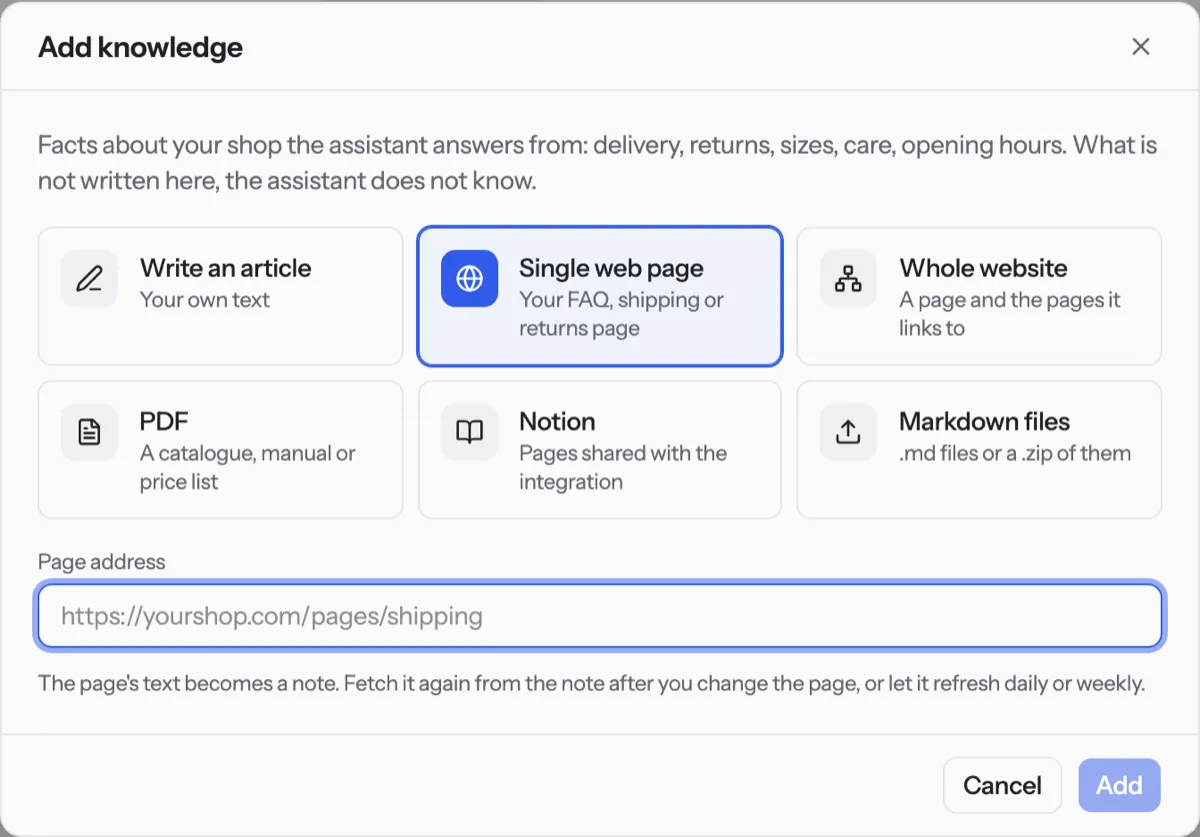
For a PDF, press Choose a PDF and then Add.
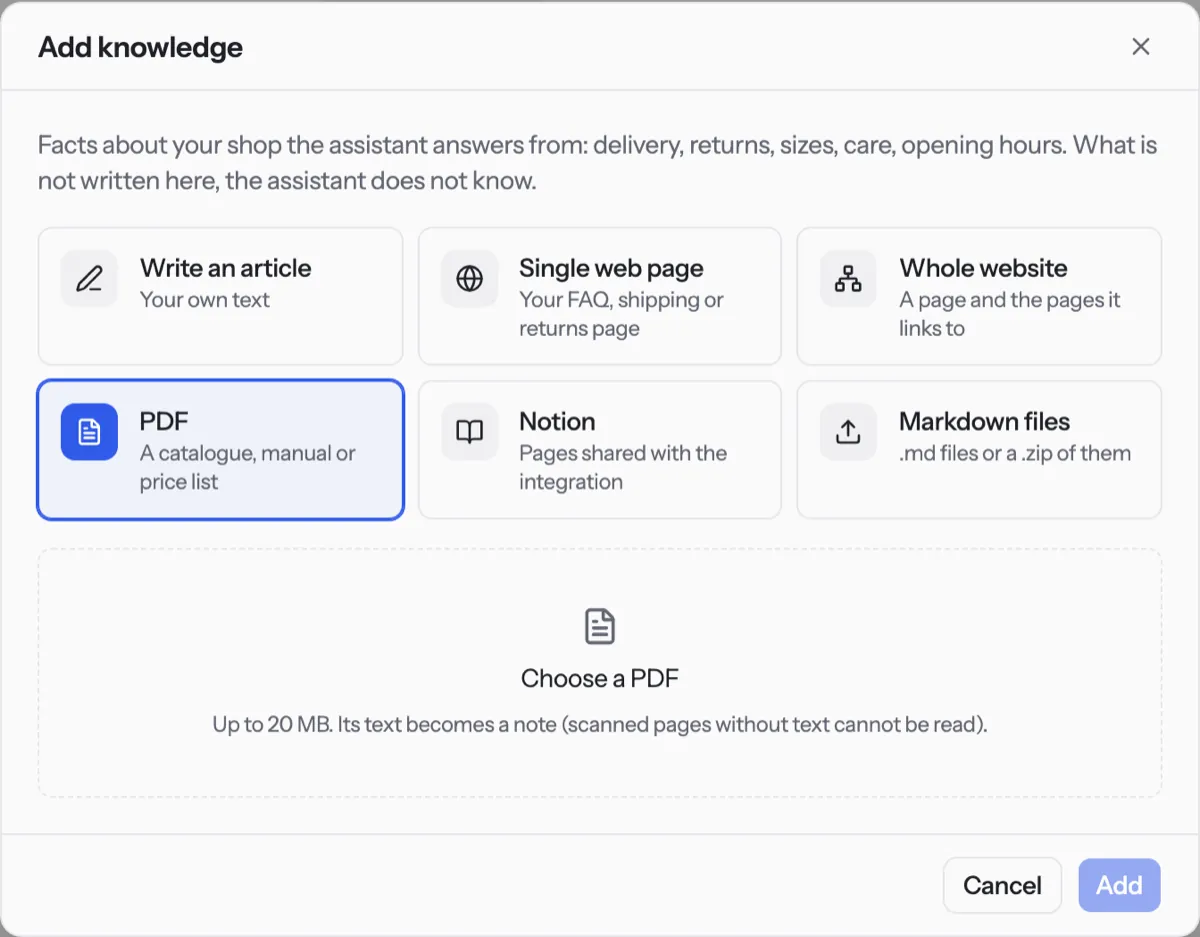
Open the new article under Articles to check it reads well.
Tip. Scanned PDFs without real text cannot be read. After you change a web page, press Fetch again from its source on its row, or set Refresh by itself in the editor.
NextFix a wrong answerWas something unclear? Contact support